How to Run Arattai App on iPhone (iOS): In today’s fast-paced world, staying connected with friends, family, and colleagues is easier than ever, thanks to messaging apps. If you’re an iPhone user looking for a secure, Indian-made alternative to popular apps like WhatsApp, Arattai might just be what you need. Developed by Zoho Corporation, Arattai is an encrypted messaging service that offers instant messaging, voice calls, video calls, and more. But how do you get it running on your iPhone or iOS device? In this guide, we’ll walk you through everything step by step, from installation to troubleshooting. Whether you’re new to the app or switching from another platform, we’ve got you covered. Let’s dive in and make sure you can start chatting seamlessly.
What is Arattai App?
Arattai, also known as Arattai Messenger, is a homegrown messaging app from India, created by Zoho Corporation. It’s designed to be simple, secure, and feature-packed, making it a strong contender in the crowded messaging space. Unlike some global apps, Arattai emphasizes privacy with end-to-end encryption for chats, ensuring your conversations stay private. It’s free to use and supports a wide range of features like text messaging, voice notes, audio and video calls, file sharing, stories, and even group chats.
What sets Arattai apart is its focus on Indian users, but it’s available worldwide. The app is built to work smoothly on iOS devices, requiring iOS 14 or newer. If you’re tired of data privacy concerns with other apps or just want to support local tech, Arattai is worth trying. Plus, it’s lightweight, which means it won’t hog your iPhone’s storage or battery life as much as some competitors.
How to Download and Install Arattai on iPhone
Getting Arattai up and running on your iPhone is straightforward, much like installing any other app from the App Store. Here’s a simple guide to help you through it.
First, open the App Store on your iPhone. You can find it on your home screen—it’s the blue icon with a white “A” made of tools. Tap on the search icon at the bottom right, and type in “Arattai Messenger.” Make sure to look for the one developed by Zoho Corporation to avoid any fakes. Once you see it, tap “Get” or the cloud icon if you’ve downloaded it before. If prompted, enter your Apple ID password or use Face ID/Touch ID to confirm.
The app is about 100MB in size, so it downloads quickly on a decent Wi-Fi connection. After installation, tap “Open” to launch it. You’ll be greeted with a welcome screen. Enter your phone number for verification—Arattai will send an OTP (one-time password) via SMS. Type that in, and you’re in! If you have an existing account, it might sync your contacts automatically, but you’ll need to grant permission for that.

apps.apple.com
Arattai Messenger App – App Store
If you’re downloading from outside India, no worries—the app is available globally on the App Store. Just ensure your iPhone is updated to the latest iOS version for the best experience.
Setting Up Arattai on Your iOS Device
Once installed, setting up Arattai is a breeze. After verifying your phone number, the app will ask for permissions like access to contacts, notifications, and camera/microphone for calls. It’s important to allow these for full functionality—without contacts access, you won’t see who’s already on Arattai.
Next, create your profile. Add a photo, set a display name, and maybe a short bio. This helps your friends recognize you. Arattai also lets you customize themes, notification sounds, and privacy settings right from the start. Head to the Settings tab (usually a gear icon) to tweak these.
For multi-device use, Arattai supports linking to a web version or other devices, but on iOS, it’s primarily mobile-focused. If you use an iPad, you can install it there too for a bigger screen experience. Syncing happens automatically once logged in.
One tip: Enable notifications so you don’t miss messages. Go to iPhone Settings > Notifications > Arattai, and turn on alerts. This way, you’ll get real-time updates even when the app is closed.
Key Features of Arattai on iOS
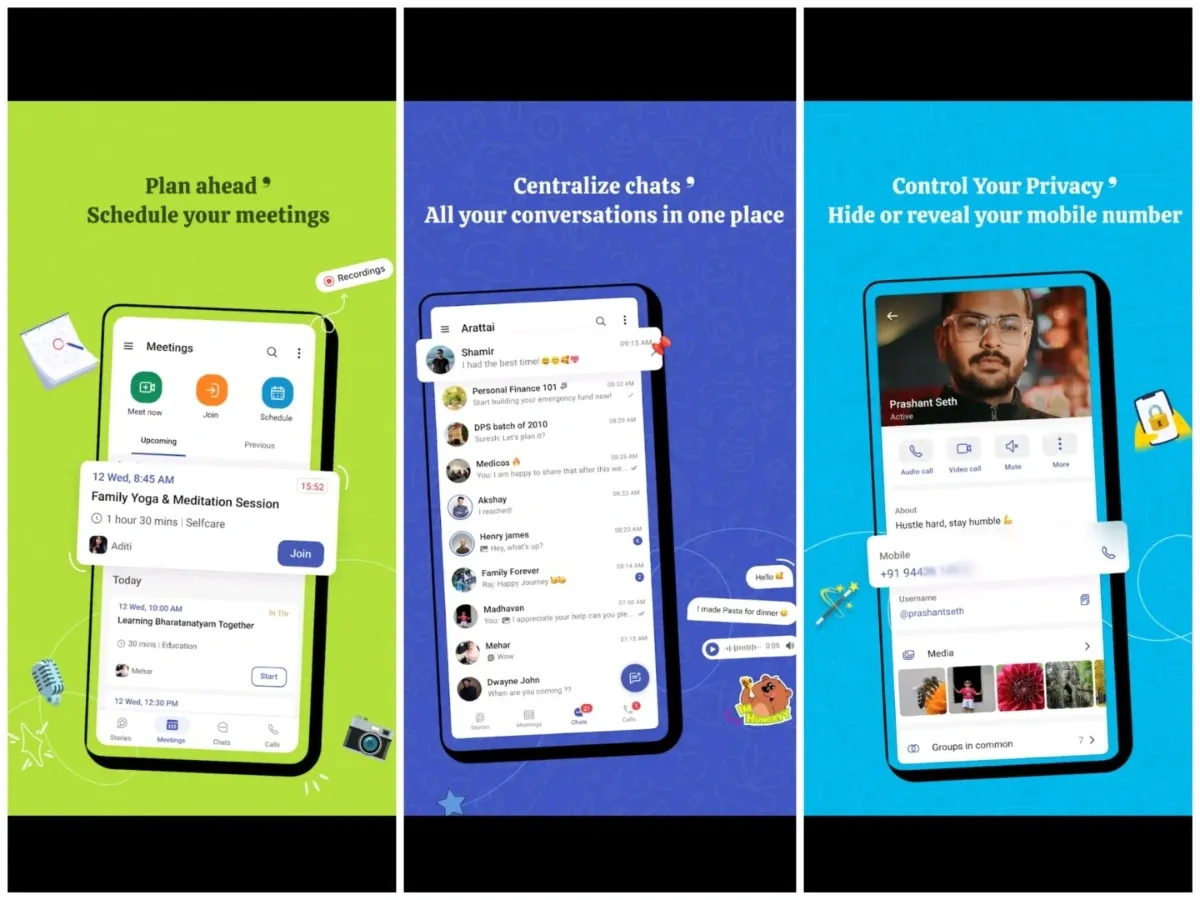
Arattai isn’t just about basic chatting; it’s loaded with features that make it fun and practical on your iPhone. Here’s a breakdown:
- Instant Messaging and Voice Notes: Send texts, emojis, and voice messages quickly. The interface is clean, with easy swipe gestures for replying or forwarding.
- Audio and Video Calls: Make high-quality calls, even on spotty connections. It supports group calls too, perfect for family catch-ups.
- File Sharing and Stories: Share photos, documents up to 1GB, and post stories that disappear after 24 hours. On iOS, integration with the camera roll is seamless.
- Groups and Channels: Create groups with up to 1,000 members or follow channels for broadcasts.
- Meetings Integration: Schedule or join meetings directly in the app—no need for Zoom or Teams.
- Pocket Feature: A personal cloud space for notes and files, like your own private chat.
The iOS version is optimized for Apple’s ecosystem, so it feels native with smooth animations and Dark Mode support. Plus, it’s secure with features like secret chats and self-destructing messages.
upstox.com
I tried the Arattai app on iPhone: Is it worth the hype?
Troubleshooting Common Issues on iPhone
Sometimes, things don’t go as planned. If Arattai isn’t running smoothly on your iPhone, try these fixes:
- App Crashing: This can happen on newer models like iPhone 15 Pro. Force close the app, restart your phone, or update Arattai via the App Store. Clearing cache in Settings > Arattai might help too.
- OTP Not Received: Check your signal or switch to Wi-Fi. If delayed, it’s often due to server load—wait a bit or try again.
- Contacts Not Syncing: Go to iPhone Settings > Arattai > Contacts and enable access. If still stuck, reinstall the app.
- Notifications Not Working: Ensure Do Not Disturb is off and notifications are enabled in both app and iPhone settings.
- Lagging or Not Opening: Update iOS, free up storage, or check for app updates. If persistent, contact Zoho support via the app.
Most issues are minor and fixed with basic steps. Arattai devs are active in releasing updates to iron out bugs.
Arattai vs. Other Messaging Apps: A Quick Comparison
To help you decide if Arattai is right for you, here’s a table comparing it with popular alternatives like WhatsApp and Signal.
| Feature | Arattai | Signal | |
|---|---|---|---|
| End-to-End Encryption | Yes | Yes | Yes |
| Group Size | Up to 1,000 | Up to 1,024 | Up to 1,000 |
| File Sharing Limit | 1GB | 2GB | 100MB |
| Stories | Yes | Yes (Status) | No |
| Meetings | Built-in | No (Separate) | No |
| Made in India | Yes | No | No |
| iOS Optimization | Excellent | Good | Good |
| Cost | Free | Free | Free |
As you can see, Arattai holds its own, especially with integrated meetings and a focus on privacy.
FAQ
Q: Is Arattai free to use on iPhone? A: Yes, it’s completely free with no in-app purchases or ads.
Q: Can I use Arattai on multiple devices? A: Yes, it supports multi-device sync, including web access.
Q: What if I forget my OTP? A: You can request a new one after a short wait.
Q: Is Arattai safe for privacy? A: Absolutely, with end-to-end encryption and no data selling.
Q: Does Arattai work offline? A: No, it requires an internet connection for messaging and calls.
Q: How do I delete my account? A: Go to Settings > Account > Delete Account in the app.
Conclusion
Running Arattai on your iPhone is simple and rewarding, offering a secure way to connect without compromising on features. From easy installation to powerful tools like meetings and file sharing, it’s a solid choice for iOS users. If you’re exploring alternatives or just curious, give it a try—you might find it becomes your go-to app. Remember to keep it updated for the latest improvements. Happy chatting!